Edit the draft with timeline, canvas, and chat
Use ngram as an AI video editor after the first draft is built. Work on the timeline for clips, audio, captions, and effects; click a scene on the canvas; or describe the change in chat and let the agent update script, visuals, and audio.
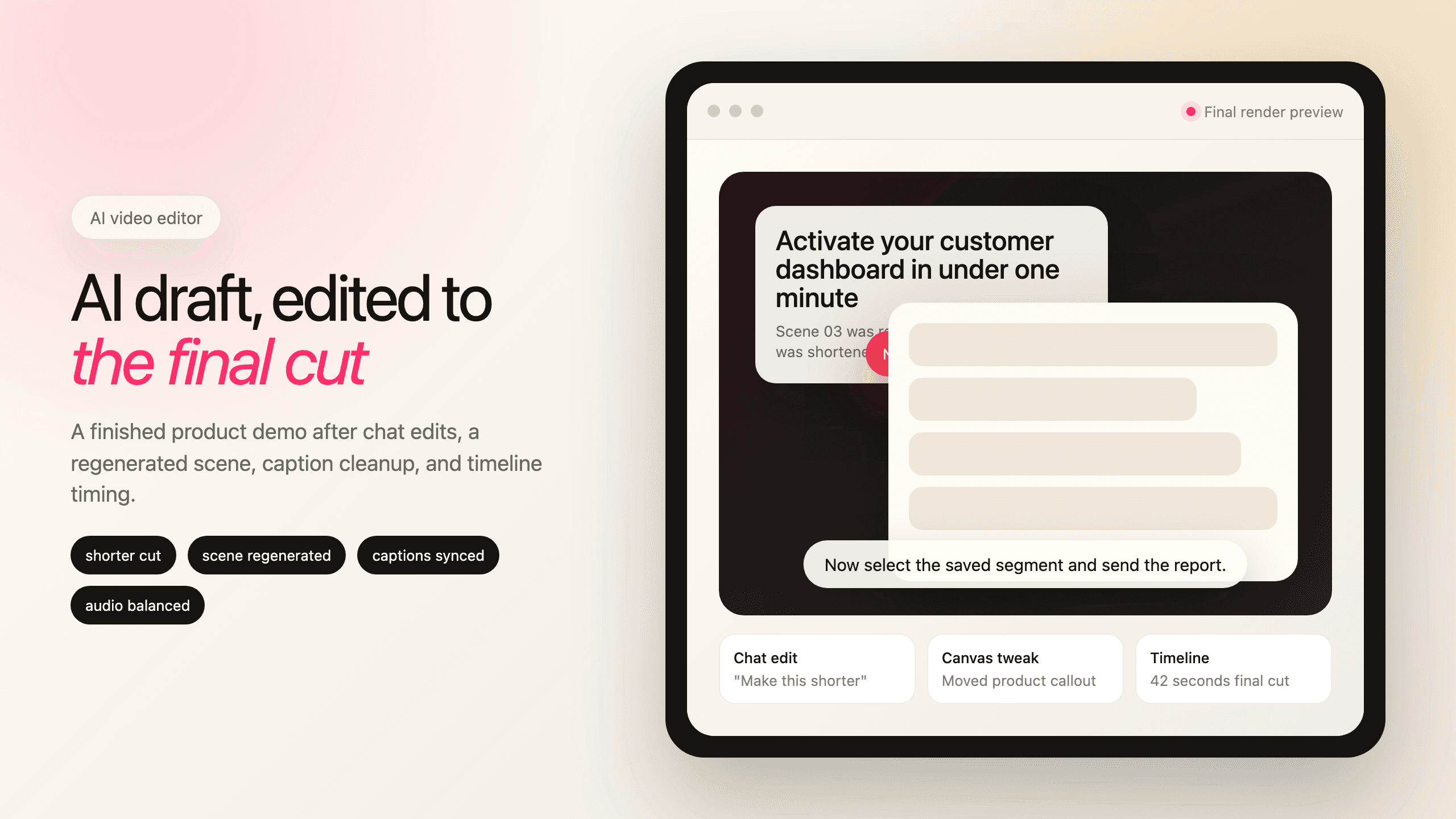
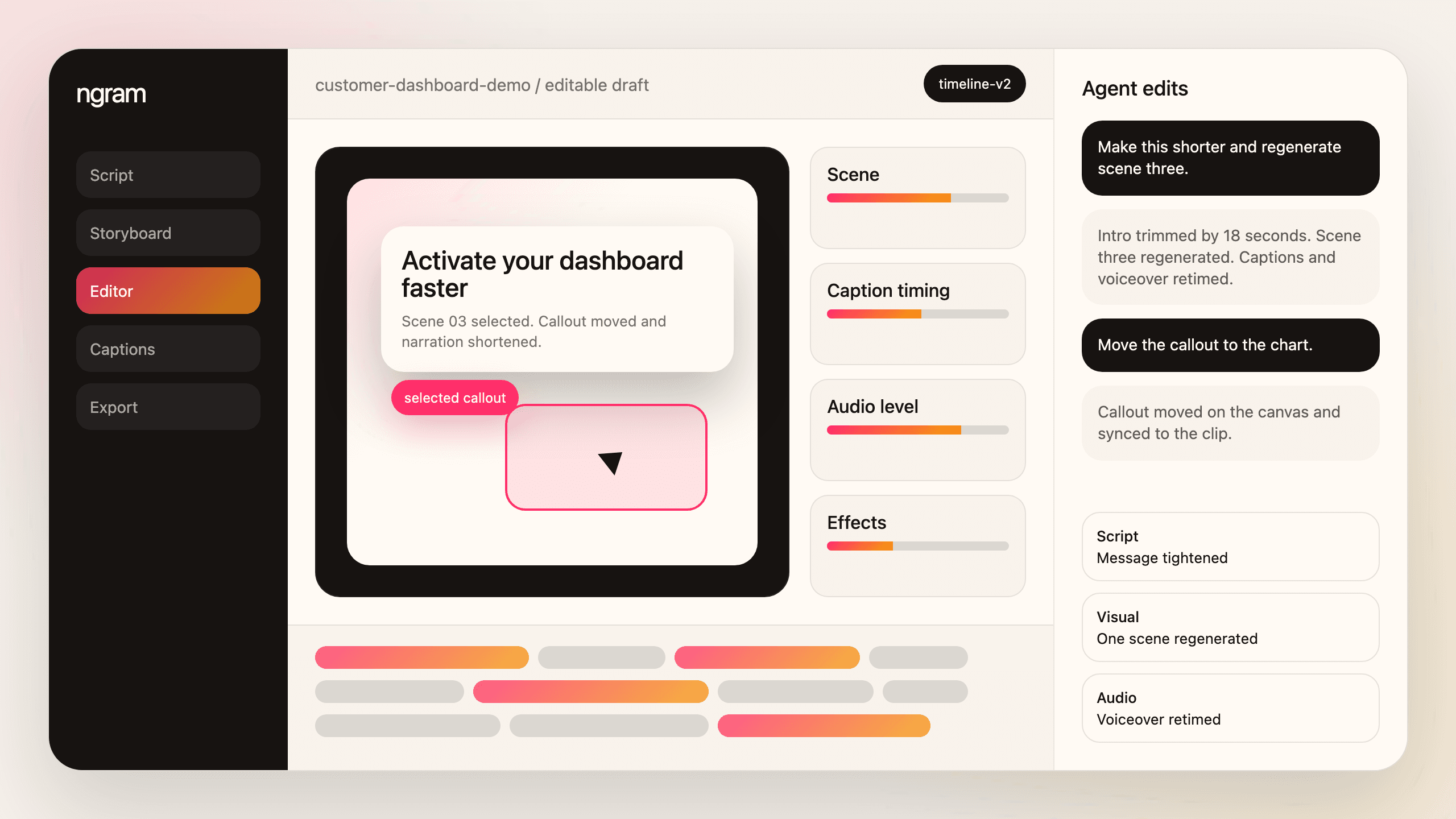
- Use timeline-v2 for clips, audio, captions, and effects after AI drafts the video
- Click a scene, callout, text element, or avatar and change only that element
- Ask in chat for shorter cuts, regenerated scenes, new tone, translation, or persona variants
- Keep script, storyboard, voiceover, captions, and visuals connected while you edit
Trusted by teams at


The first AI draft still needs real editing control
A draft is useful when it gets you close. It still has to match the message, the audience, the pacing, the product details, and the brand. That usually means jumping between a script doc, a timeline, captions, voiceover, design tools, and review comments.
Small cuts can break the whole piece
Trim a clip in one tool and the captions, voiceover, scene timing, or on-screen labels may need a second pass somewhere else.
Broad feedback becomes manual work
Requests like "make this shorter" or "make it more direct" often become a long checklist across script, visuals, and audio.
One bad scene slows the review
A single weak scene can force a full re-export or a round trip through another editor when you only wanted that scene changed.
Precise edits need context
A text label, callout, avatar, or product shot should change in the scene where it lives, without rebuilding the rest of the video.
Video Editing in ngram keeps direct controls and agentic edits in the same project.
AI builds the draft, you keep control
Edit the AI draft with the surface that fits the change: timeline for precision, canvas for scene tweaks, chat for outcome-level revisions.
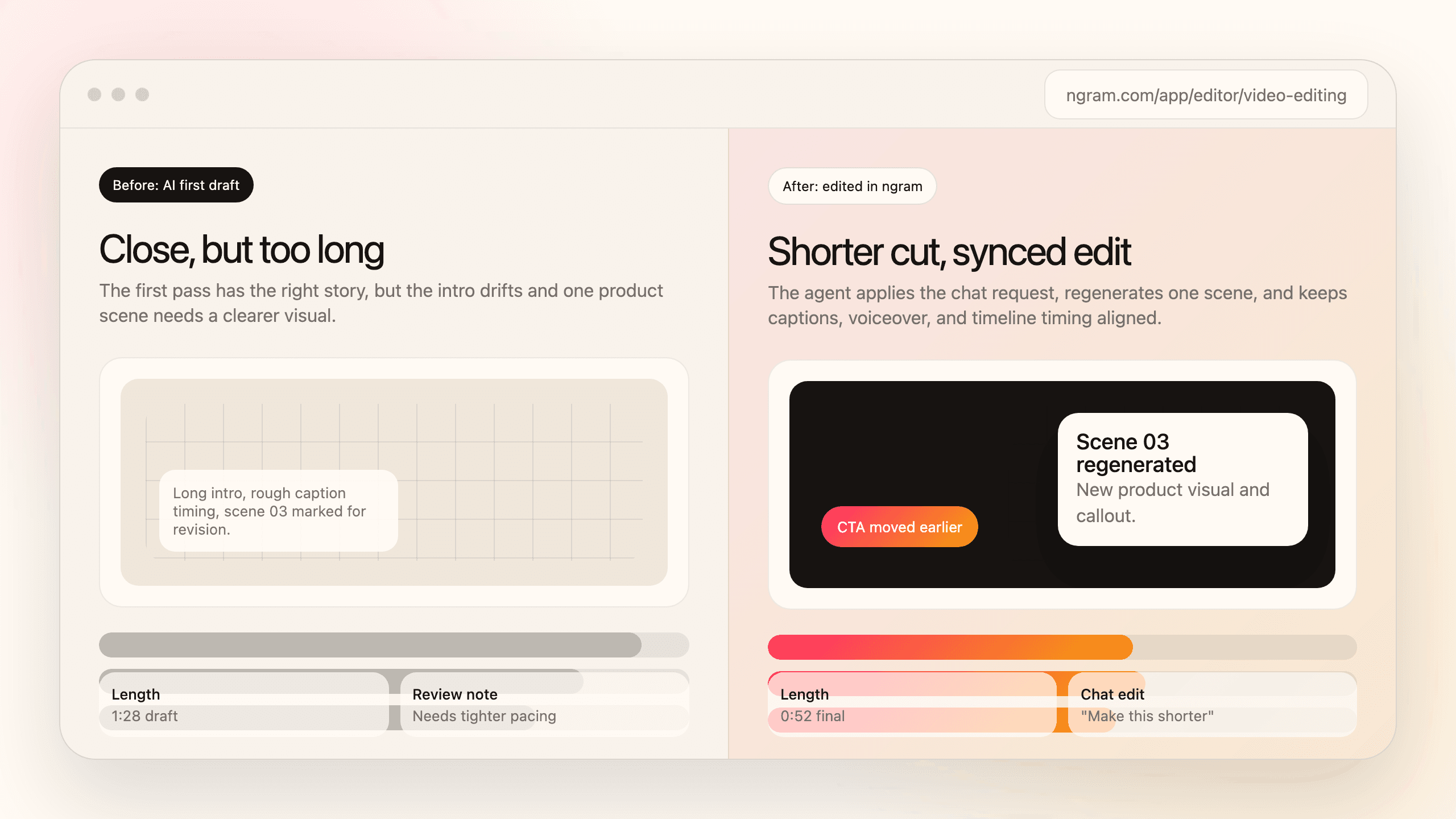
The agent updates the connected parts of the video instead of leaving you to reconcile them by hand.
Edit the timeline directly
Move through clips, audio, captions, and effects when you need frame-level control after the draft is generated.
Tweak scenes on the canvas
Click a scene, callout, text layer, image, or avatar and change just that element with visual controls or visual chat.
Describe the broader change
Ask for a shorter cut, a regenerated scene, a new tone, or a translated version and ngram applies the edit across script, visuals, and audio.
What makes editing in ngram different
ngram does not stop at generation. It keeps the editable plan, rendered scenes, captions, audio, and timeline connected while you make changes.
Use the timeline when exact timing matters
Timeline-v2 gives direct control over clips, audio, captions, and effects for the moments where you want to touch the cut yourself.
Use chat when the edit is a direction
Tell the agent what should change, such as shorter pacing, a different audience, or a regenerated scene, and it updates the connected video pieces.
Change one scene without disturbing the rest
Regenerate a scene, adjust on-screen text, move a callout, replace an image, or tweak an avatar without starting the whole video over.
Keep script, captions, and voiceover together
Script edits ripple into scene timing, voiceover, and captions so the final video does not drift away from the approved message.
How video editing works in ngram
Start from the AI draft, make broad edits in chat, tune scenes on the canvas, and finish with timeline control when you need it.
Generate the first draft
Bring a prompt, doc, URL, screen recording, deck, or existing video and let ngram create the script, storyboard, scenes, captions, and audio.
Ask for outcome-level edits
Use agentic chat for requests like "make this shorter," "regenerate this scene," "translate to German," or "make it more direct."
Tweak the scene itself
Click the scene, callout, text, image, or avatar on the canvas and adjust the element with visual controls or visual chat.
Finish on the timeline
Use the video editor for final clip timing, audio levels, captions, effects, and export format before publishing.
Who uses Video Editing
Teams use Video Editing when the first draft is close but the final video still needs message, timing, scene, or audience changes.
Product marketing
Tighten pacing, regenerate product scenes, change CTA language, and keep captions and voiceover tied to the approved message.
Sales enablement
Ask for a shorter version, swap the emphasis for a buyer persona, and cut down scenes before sending a follow-up.
Customer success
Edit steps, captions, and callouts when a workflow changes, without re-recording the whole training video.
Product managers
Cut dead air, regenerate a weak scene, add labels, and use chat to make an update more direct for stakeholders.
Where can you use Video Editing?
Use Video Editing anywhere a generated or uploaded video needs to become sharper before it is shared.
Product Demo Video
Drop in a rough screen recording or paste your product URL. A product demo video maker built for SaaS hands you back a clean walkthrough with smart zooms, captions, and brand polish — no timeline editor in sight.
Product Explainer Video
Drop in a feature doc, a landing-page URL, or a rough product walkthrough. An explainer video maker built for product teams turns either source into a structured explainer with motion graphics, voiceover, and branded styling — no animation skills, no agency timeline.
Sales Demo Video
Record your product once. Spin up a prospect-specific sales demo video for every deal in your pipeline — branded, captioned, and ready in fifteen minutes. No SE waitlist, no agency invoice, no "picture your data here."
Customer Onboarding Video
Turn help docs or a screen recording of the setup flow into a polished customer onboarding video new accounts actually finish. Reach first-value the same day, not the following week, without booking another live kickoff call.
Feature Announcement Video
Paste your release notes, the PRD, or the product URL. Get back a polished feature announcement video with motion graphics, captions, and your brand kit — ready to ship the same sprint the feature does.
Support Help Video
A customer support help video maker built for the broader knowledge base — troubleshooting flows, multi-step fixes, error-state recoveries. Smart zooms on every click, captions for muted browsing, embedded across the help center, chatbot, and in-app drawer. Fewer tickets. Faster resolutions.
Training Video
Turn your SOPs, screen recordings, and process docs into a corporate training video in under thirty minutes. Smart zooms on every click, step labels on every menu, captions burned in, branded intro applied — ramp new hires faster without booking a video team.
Webinar Clips
Upload your Zoom or Teams recording. A webinar clips workflow built for content teams returns ten polished, captioned cutdowns of every key moment, sized for LinkedIn, Shorts, and Reels — no scrubbing, no Premiere, no letting the recording rot in a shared drive.
Video Editing compared with the usual tools
This comparison is category-level. ngram combines an AI first draft, chat edits, canvas tweaks, timeline control, and connected script/audio/caption updates.
| Capability | ngram | Timeline editor | Chat generator | Template editor |
|---|---|---|---|---|
| AI first draft | ● Drafts script, storyboard, scenes, captions, and audio | × Starts from manual assembly | ● Can generate from a prompt | ~ Starts from a preset |
| Chat-based edits | ● Applies changes across script, visuals, and audio | × Manual edits only | ● Strong for text directions | ~ Usually template-scoped |
| Timeline control | ● Direct clips, audio, captions, and effects | ● Direct timeline editing | × Limited direct cut control | ~ Preset timing controls |
| Canvas and visual chat | ● Click an element and edit that scene | ~ Manual layer controls | ~ May need text-only prompts | ~ Depends on template layers |
| Single-scene regeneration | ● Regenerates one scene without changing the rest | × User rebuilds the scene | ~ May regenerate larger chunks | × Preset replacement only |
| Script, captions, and audio sync | ● Script edits update timing, voiceover, and captions | ~ Usually managed separately | ~ Depends on generated output | ~ Caption sync is usually manual |
| Brand and export | ● Brand kit and multi-format export stay connected | ~ Possible after setup | ~ Depends on tool chain | ~ Template brand controls |
Use Video Editing with the rest of ngram
Editing works best when the draft, visuals, voice, motion, brand, and export settings all stay in the same project.
Script Generation
Start with a script and storyboard the editor can revise when the message changes.
AI Visuals
Regenerate or swap scene visuals when a draft needs a different direction.
Motion Graphics
Add callouts, lower-thirds, transitions, and smart zooms while you refine the cut.
AI Voiceover
Update narration after script edits and keep voiceover aligned with the final scene timing.
Brand Kit
Keep captions, colors, fonts, intros, outros, CTAs, and motion style consistent while editing.
Multi-Format Export
Export the final edit as website, LinkedIn, vertical, square, GIF, WebM, or deck-ready formats.
Start editing from the material you already have
Use these existing converter pages when the editing workflow starts from recordings, docs, URLs, scripts, or longer videos.
Video to Editable project
Bring existing footage into ngram, then cut, caption, score, and revise it before export.
Screen recording to Edited demo
Turn a rough capture into a polished product demo with smart zooms, captions, and edits.
Text to Video draft
Start with a script, announcement, or prompt, then edit the generated video in chat or on the timeline.
Document to Editable video
Use a doc as source material, then refine the script, scenes, captions, and audio after the draft.
URL to Video draft
Create a draft from a product page or article, then adapt the edit for a specific audience or channel.
Webinar to Edited clips
Cut longer recordings into shorter clips and refine each one with captions, branding, and export formats.
Tools that support video editing
Use focused tools when a finished edit needs trimming, captions, text overlays, music, audio cleanup, compression, or transcript work.
Video Editor
Open the browser editor for direct trims, captions, audio, effects, and final cut changes.
Video Cutter
Cut pauses, false starts, long intros, and extra footage before sharing the final video.
Add Subtitles to Video
Add subtitles when an edited video needs clearer playback for social, training, or support.
Video Caption Generator
Generate captioned versions of edited clips for product launches, demos, and social posts.
Add Text to Video
Add titles, lower-thirds, callouts, and labels that stay timed with the edited sequence.
Add Music to Video
Add or adjust music when the final cut needs a different tone, pacing, or transition feel.
Remove Background Noise from Video
Clean microphone noise before using existing footage, narration, or screen recordings in an edit.
Video Compressor
Compress the final edit for faster uploads, email sharing, or embedded playback.
Use edited videos with the integrations already live in ngram
Start editable video work from live creation integrations, then move approved videos to the live publishing integrations.

Chrome Extension
Use the Chrome Extension when a webpage or product flow should become source material for an editable video project.

Zapier
Trigger ngram work from Zapier when a form, CRM event, or request should create a video task for review.

Make.com
Use Make scenarios to pass prompts, source links, or files into repeatable video editing workflows.

n8n
Connect n8n workflows to ngram when internal systems need to create editable video requests.

MCP Server
Let AI agents call ngram through MCP when a prompt, file, or source bundle should become an editable video.

Publish approved product demos, launch clips, and customer explainers to LinkedIn after editing.

YouTube
Send tutorials, walkthroughs, and explainers from ngram to YouTube once the final edit is ready.

X (Twitter)
Publish shorter edited clips and launch updates to X after review.
Only the integration detail pages that are live on ngram are listed here.
See all integrationsVideo Editing questions
Still curious?
Start with a draft, finish with control
Use chat for broad edits, the canvas for scene changes, and the timeline for clips, audio, captions, effects, and export.
Generate the first version quickly, then use the editor surface that fits each change.
Timeline, canvas, chat, captions, audio, export