Auto Subtitle Generator by ngram
Auto Subtitle Generator Team Video Captions

Drop a video or click to upload
MP4, MOV, WebM, MKV - the auto subtitle pass uses the speech track
What it does
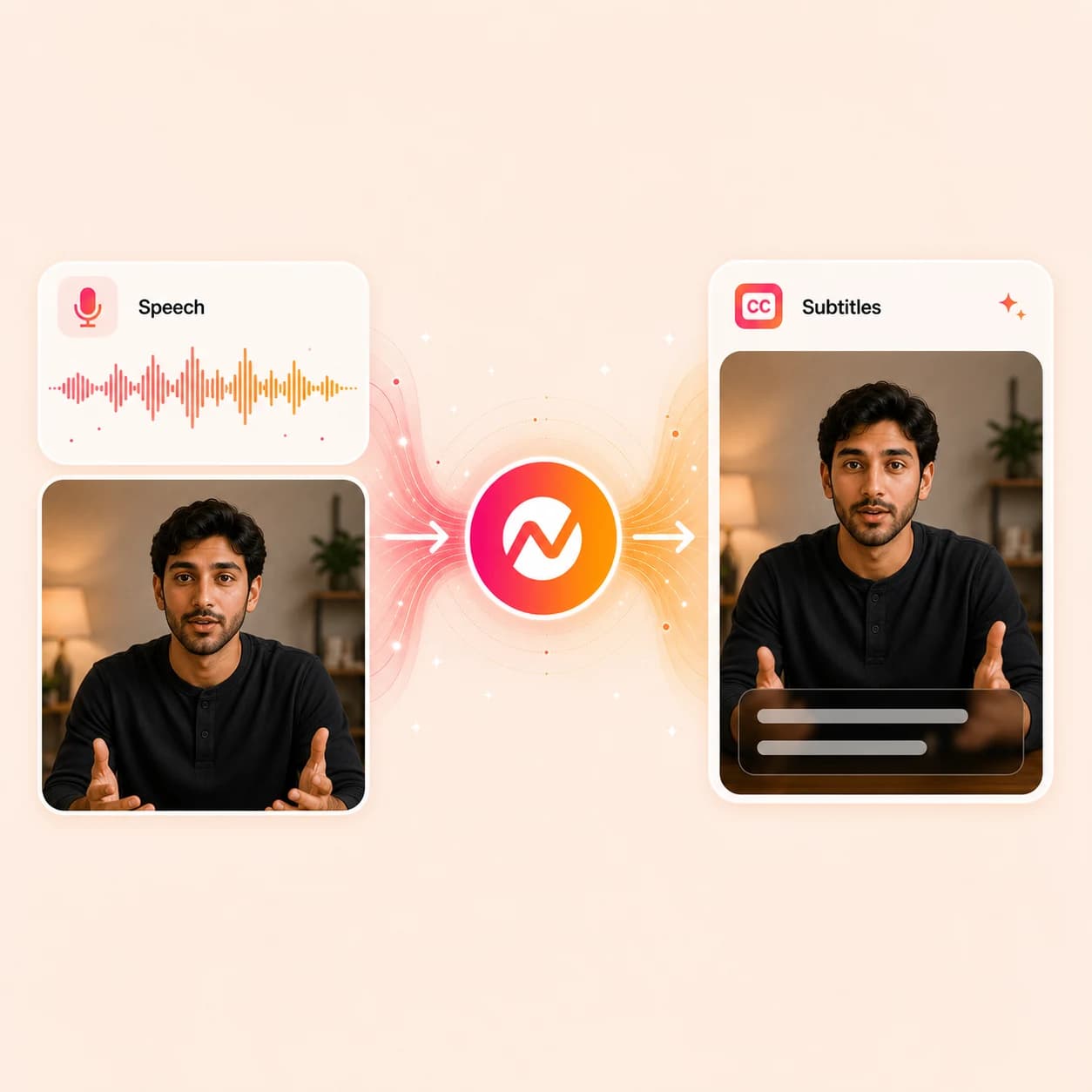
Drop in a video or audio file. ngram transcribes the speech with AssemblyAI, lays timed subtitle lines on the timeline, and leaves every word, break, and style choice open before the captioned project moves into translation, resize, or export.
Trusted by teams at


How it works
From upload to auto-generated subtitles.
ngram runs the transcription, places timed subtitle lines on the timeline, and hands the project back so the words, timing, and styling stay editable before export.
Upload the speech source
Drop in a video, audio file, webinar replay, demo, or share-link URL. Clearer speech needs fewer corrections after the auto subtitle pass.
Speech source ready
Run the automatic transcription
ngram transcribes the audio with AssemblyAI and writes the subtitle lines onto the timeline in one pass, with timing aligned to the spoken cadence.
Auto-generated subtitles in
Review words, timing, and style
Fix product names, acronyms, and line breaks. Nudge any timing the auto pass got close but not perfect. Apply caption font, color, and position from the brand kit.
Lines reviewed and styled
Export or keep working
Render the captioned video, hand it to translation for a localized pass, resize for vertical and square cuts, or keep editing the rest of the project in the same workspace.
Ready for channels
What it can do
What ngram's auto subtitle generator does.
The automatic pass writes the lines so a captioned video starts from a reviewable timeline instead of a blank caption track.
Generate timed subtitles in one pass
Upload the file and the auto subtitle generator returns lines with timings already snapped to the speech, so the first review is a polish step, not a build.
Edit every auto-generated line
Correct product names, jargon, acronyms, speaker tags, and line breaks on the timeline before the captions are baked into the final render.
Carry the subtitles into another language
Reuse the same auto-generated transcript for translated subtitles, localized on-screen text, and multilingual voiceover instead of running transcription again.
Learn more about translationStyle captions with the brand kit
Apply font, color, outline, position, and motion from the brand kit so auto-generated subtitles look the same across every video the team ships.
Learn more about brand kitMove from subtitle file to burned-in MP4
Keep the auto subtitle output as the foundation for a clean burn-in render, with the same lines reused across widescreen, square, and vertical cuts.
Learn more about captionsExport captioned video for any channel
Send the auto-captioned project into multi-format export so the same subtitles ship to LinkedIn, YouTube, embeds, help docs, and internal players.
Learn more about export formatsBuilt for auto-generated subtitles that ship to real channels
When it matters
Where auto-generated subtitles change the video.
Nine ngram use-case pages where the automatic subtitle pass is the difference between a clip that ships and one that sits in a folder.
Feature Announcement Video
Use this workflow to create feature announcement video assets from approved business source material.
Open AI video use caseMarketing Social Clips
Run the auto subtitle pass on every social cut so demand-gen ships LinkedIn, Reels, and Shorts variants without manual captioning between drafts.
Open AI video use caseLinkedIn Video
Drop founder and PMM clips straight into the auto subtitle generator so the feed version reads cleanly while most viewers scroll silently.
Open AI video use caseWebinar Clips
Cut a long webinar into short highlights and auto-generate subtitles on each clip so the moment plays without context for new viewers.
Open AI video use caseHelp Center Video
Auto-generate subtitles on support walkthroughs so customers can scan the fix at a noisy desk without unmuting the player.
Open AI video use caseTraining Video
Run the auto subtitle pass on policy, SOP, and product training clips so people can rewatch and search the captions during quiet review.
Open AI video use caseTutorial Video
Auto-generate subtitles on tutorial recordings so each step reads alongside the cursor, even when the viewer is following on a second screen.
Open AI video use caseProduct Demo Video
Auto-caption demo recordings so UI names, button labels, and value points stay clear when the deal-room link is opened in a meeting.
Open AI video use caseInternal Communication Video
Auto-generate subtitles on team updates so the Slack post lands in headphones, open offices, or transit without audio playing out loud.
Open AI video use caseProduct stack
The product stack around auto-generated subtitles.
Auto subtitles are one layer; these features keep the captioned video moving through translation, brand styling, voiceover, and export without leaving ngram.
Captions & Subtitles
The captions feature owns the auto-generated subtitle layer end to end: timing, line breaks, styling, and the burn-in render that ships.
Learn more about captionsTranslation & Localization
Send the auto-generated subtitles into a translated pass so the same timing drives Spanish, French, German, and Japanese variants of the captioned clip.
Learn more about translationBrand Kit
Lock auto subtitle styling to brand fonts, colors, outline, and position so every automatically captioned video reads with the same look.
Learn more about brand kitVideo Editing
Open the editor to trim, reorder, or layer additional scenes around the auto-generated subtitle track without breaking timing on the existing lines.
Learn more about video editingScript Generation
Reuse the auto-generated transcript as the source script for recaps, social cutdowns, or follow-up videos that share the same wording.
Learn more about script generationAI Voiceover
Pair auto subtitles with a regenerated voiceover when the original audio is rough, so the captioned cut ships with clean speech matched to the lines.
Learn more about AI voiceoverMulti-Format Export
Render the auto-captioned project as widescreen, square, and vertical MP4 so the same subtitle pass covers every channel cut.
Learn more about export formatsEnterprise Integrations
Route auto-generated subtitle jobs through Zapier, n8n, Make, MCP, the Chrome extension, and channel publishers so captioned video moves between systems.
Learn more about integrationsMore tools
Tools that pair with the auto subtitle pass.
Use these to prepare the source for cleaner auto-captions, polish the captioned video after, or run a different subtitle job entirely.
Other subtitle and transcript tools
Different jobs around the same speech-to-text work.
Add Subtitles to Video
Take the auto-generated lines and render a single burned-in MP4 when the deliverable is a hardcoded captioned video.
Open toolVideo Caption Generator
Switch to animated, word-by-word social captions when a short clip needs emphasis and motion instead of clean subtitle lines.
Open toolVideo to Text
Pull a plain transcript from the same video when the next step is research notes, summaries, or written content.
Open toolAudio to Text
Run audio-only files through transcription when no video exists yet but a transcript will drive later captions.
Open toolClean the source before auto-captioning
Better input means fewer corrections after the automatic pass.
Remove Background Noise from Video
Strip chatter and room hum so the auto subtitle generator works from a cleaner speech track.
Open toolRemove Background Noise from Audio
Clean a separate audio source before it becomes the input to the auto subtitle pass.
Open toolVideo Cutter
Trim the clip down to the section that needs captions before running the automatic subtitle generation.
Open toolEye Contact AI
Fix off-camera gaze on talking-head footage so the auto-captioned final cut also reads as a confident take.
Open toolPolish the captioned video
Finish the auto-captioned project before it ships.
Add Text to Video
Stack titles, lower-thirds, and callouts on top of the auto-generated subtitle layer without overlap.
Open toolAdd Music to Video
Lay a music bed under speech after the auto subtitle review so the mix never throws off readability.
Open toolVideo Editor
Open the full editor to fine-tune the auto subtitle track alongside scenes, audio, and motion graphics.
Open toolVideo Compressor
Shrink the auto-captioned MP4 for email, deal rooms, and platforms with strict upload limits.
Open toolTranslate or repurpose
Carry the auto-generated subtitle work into other languages and formats.
Video Translator
Translate the auto-generated subtitles into another language without rerunning transcription or retyping every line.
Open toolVoice Dubber
Dub the auto-captioned video so localized audio rides alongside the translated subtitle track.
Open toolVideo to GIF
Loop a short auto-captioned moment as a GIF for docs, email, or chat embeds when a full clip would be too heavy.
Open toolVideo Converter
Convert the auto-captioned MP4 into the codec or container the destination platform expects.
Open toolConvert
Where the clip that needs auto-subtitles usually starts.
Three source-to-video converters that produce the recordings most likely to land in the auto subtitle generator next.
Screen Recording to Video
Turn a rough screen capture into a polished walkthrough, then run the auto subtitle pass so every narrated step reads on screen.
Open converterWebinar to Clips
Cut a long webinar into short highlights, then auto-generate subtitles per clip so each pull works on muted social feeds.
Open converterAudio to Video
Layer visuals on a podcast or voice recording, then let the auto subtitle generator do the heavy lifting so captions carry the meaning.
Open converterWho it is for
Teams that auto-caption every video by default.
Auto-generated subtitles are the baseline for teams whose videos travel across muted feeds, support pages, training portals, and shared inboxes.
Growth & Marketing
Ship social cuts and ad variants where auto subtitles let the message land in the first three seconds of a silent scroll.
See growth workflowsProduct Marketing Managers
Run launch clips, demo cutdowns, and explainer videos through the auto subtitle pass so feed, deck, and email versions match.
See product marketing workflowsSales Enablement
Auto-caption demo recordings and prospecting videos so muted laptop views still pick up the value props and next steps.
See sales workflowsCustomer Success
Auto-generate subtitles on onboarding and QBR videos so customers can rewatch and skim without unmuting.
See CS workflowsSupport Teams
Auto-caption help-article videos and ticket replies so the fix reads through at a noisy desk.
See support workflowsEducators
Run lecture and tutorial recordings through the auto subtitle generator so students can read along, search the captions, and review later.
See educator workflowsHR & Internal Comms
Auto-caption all-hands videos and policy explainers so they play in shared rooms, open offices, and Slack channels without sound.
See internal comms workflowsAgencies & Consultants
Auto-generate subtitles across client cuts so every deliverable ships with the brand-styled caption pass already in.
See agency workflowsDeveloper Relations
Turn docs, tutorials, API updates, and conference recordings into developer-facing video assets.
See DevRel workflowsIntegrations
Move auto-generated subtitles into and out of the workflow.
Live ngram integrations that fit a workflow where a recording arrives, the auto subtitle pass runs, and the captioned clip needs to go somewhere next.
Zapier
No-codeWhenA new recording lands in Drive, Dropbox, or a form intake that flags it for captions
ThenKick off the ngram auto subtitle pass and send the captioned MP4 back to the requester
MCP Server
AgenticWhenClaude or ChatGPT is asked to auto-generate subtitles on a clip shared in chat
ThenCall ngram, run the auto subtitle generator, and return the captioned video inside the agent thread
n8n
WorkflowWhenA CMS record or content task marks a fresh recording as ready for auto-captions
ThenRoute the file into ngram for the auto subtitle pass and write the captioned video URL back to the record
Make.com
ScenarioWhenA launch clip or webinar pull is approved for auto-captioning
ThenRun the auto subtitle generator in ngram and notify the owner with the captioned version
Chrome Extension
CaptureWhenYou find a recording on the web that needs subtitles before it can be shared
ThenHand the source straight to ngram and start the auto subtitle pass without re-downloading the file
WhenAn auto-captioned clip is approved for the company or founder feed
ThenPublish the captioned version to LinkedIn with the post copy attached
X (Twitter)
PublishWhenA short auto-captioned teaser or update is cleared to post
ThenPush the captioned clip to X with the matching launch copy alongside
YouTube
PublishWhenA long-form cut finishes the auto subtitle pass and is ready to upload
ThenSend the captioned MP4 to YouTube with title, description, and chapter markers
For programmatic auto subtitle jobs, the public API, webhook subscriptions, presigned S3 uploads, and the MCP endpoint cover the same paths.
Why ngram
How ngram compares as an auto subtitle generator.
Most auto subtitle tools end at a styled caption file. ngram keeps the auto-generated subtitle pass attached to the editor, brand kit, translation, and the rest of the project.
| Compare | ngram | VEED | Submagic | Descript |
|---|---|---|---|---|
| Workflow fit | Auto-generates subtitles with the AssemblyAI engine inside the same project used for editing, brand kit, translation, and multi-format export. | VEED auto-generates subtitles in the browser with broad language coverage and exports captions burned in or as SRT, VTT, or TXT files. | Submagic specializes in auto-generated animated captions for short-form social video with emoji highlights and styled templates. | Descript auto-generates subtitles from its transcript and exports burned-in captions or SRT and VTT files alongside text-based editing. |
| How ngram fits | Keeps every auto-generated line editable on the timeline and tied to script, voiceover, and channel variants for the next pass. | Dynamic and karaoke-style subtitle presets fit short-form creator content well. | It fits creators producing high-volume Reels, approved social channels, and Shorts content that need viral caption treatments. | It suits podcast, recording, and creator teams that want the transcript as the primary editing surface. |
| Best use | Best for teams that want auto-captioned business video to roll straight into the next demo, social cut, or localized variant. | ngram is stronger when the auto subtitle pass should stay connected to source material, brand kit, voiceover, and downstream variants. | ngram fits when the auto subtitle work belongs inside a business video project with brand kit, translation, and longer-form export. | ngram fits when the auto subtitle pass should sit alongside storyboard, voiceover, brand kit, and multi-format export. |
FAQ
Common questions about the auto subtitle generator
Still curious?
Automatic captions, ready to ship
Drop in the recording, let ngram auto-generate the subtitle lines, review wording and styling, and keep the captioned project moving through translation, resize, and export.
Run the auto subtitle generator now, then finish the full video in ngram.
Auto subtitles, brand styling, translation, export