Audio to Text by ngram
Audio to Text Meeting and Webinar Transcripts

Drop audio or click to upload
MP3, WAV, M4A, AAC, FLAC, OGG - clear speech gives the cleanest transcript
What it does
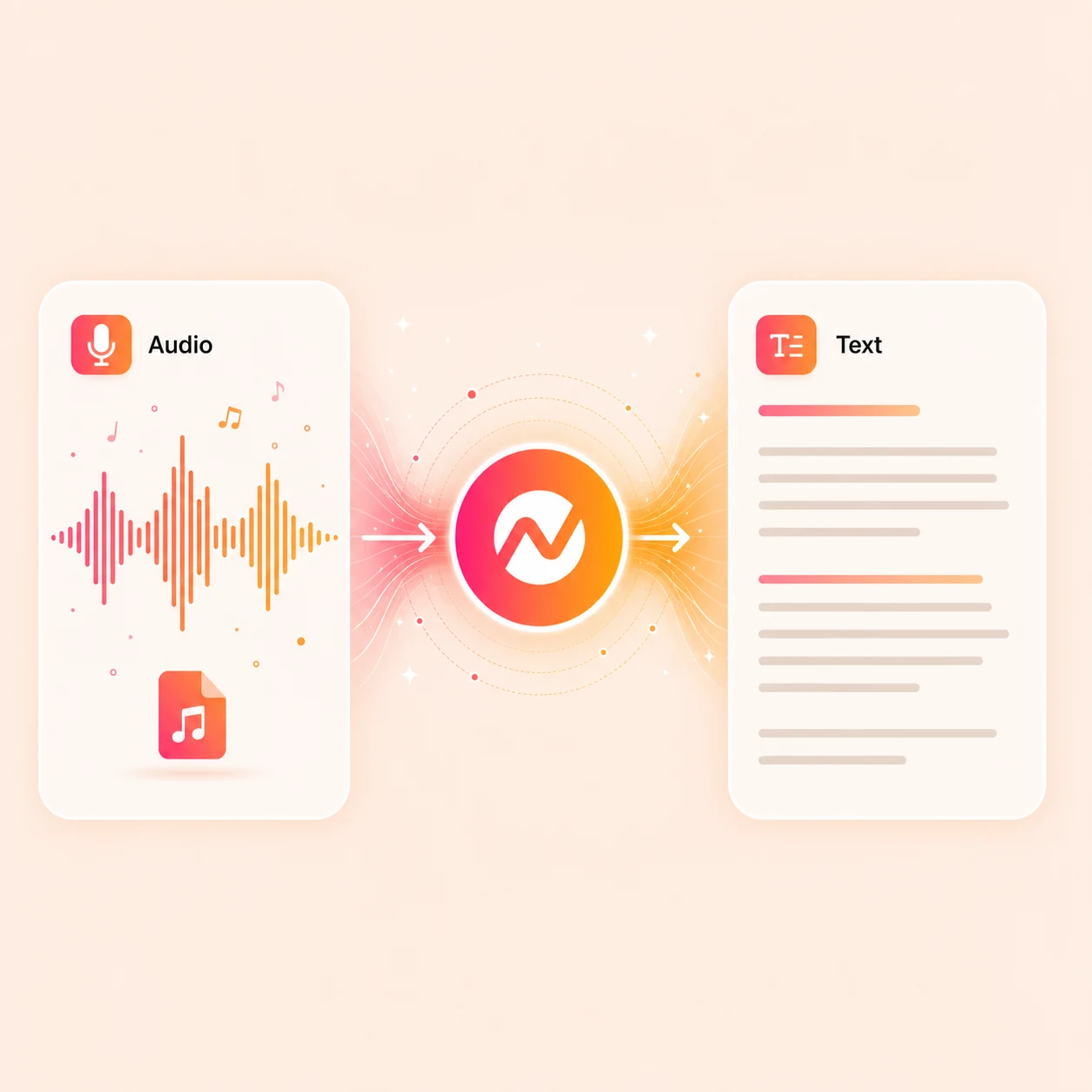
Upload a podcast, meeting, interview, or voice memo, transcribe the audio to text with timestamps in the original language, then keep the project ready for captions, clips, scripts, voiceover, translation, and video export.
Trusted by teams at


How it works
From spoken audio to a working transcript.
Upload the audio, run AssemblyAI transcription with timestamps, review the text, then keep the project ready for downstream video work.
Upload the audio
Start with a podcast episode, meeting recording, interview, webinar replay, voice memo, or any speech-heavy audio file.
Audio uploaded
Run AI transcription
ngram runs the audio through AssemblyAI, returns the full text with timestamps, and keeps each line tied to the original media position.
Transcript generated
Review names and terms
Correct product names, acronyms, and brand spellings so the transcript reads cleanly before it powers captions or scripts.
Transcript polished
Reuse the text
Send the transcript into captions, highlight clips, summaries, scripts, voiceover, translation, or a finished video edit inside the same ngram project.
Ready for video work
What it can do
What ngram's audio to text engine does.
Transcription powered by AssemblyAI returns text that is already structured for video production, not a flat block to paste somewhere else.
Handle multi-speaker recordings
Transcription captures every voice on the recording so meeting notes, interviews, and panel discussions land as readable text even when there are multiple participants.
Keep timestamps on every line
Each transcript line carries a timestamp tied to the original audio, so reviewing a quote, pulling a clip, or jumping back to a moment stays one click away.
Transcribe and translate the audio
Multilingual transcription handles common podcast and meeting languages; the same transcript can continue into translated captions, voiceover, and on-screen text.
Learn more about translationUse the transcript as a caption source
The text flows straight into timed captions inside the editor, with brand-kit styling and burned-in subtitles when the audio becomes video.
Learn more about captionsTurn the transcript into a script
Reuse the cleaned text as raw material for video scripts, recaps, social captions, sales follow-ups, and customer summaries.
Learn more about script generationBuilt for transcripts that become video
When it matters
Where audio-to-text transcription unlocks the next step.
Nine ngram use-case pages where speech needs to become editable text before captions, clips, summaries, or finished video can ship.
Meeting Recap Video
Transcribe meeting audio, find decisions and action items in the text, then turn the recap into a captioned video for everyone who missed the call.
Open AI video use caseWebinar Clips
Transcribe a webinar recording, scan the text for the strongest moments, and cut captioned social clips from the matching audio timestamps.
Open AI video use caseCustomer Testimonial Video
Transcribe raw customer interview audio with timestamps, pull the most useful quotes, and build a testimonial video around the proof points.
Open AI video use caseSales Demo Followup Video
Transcribe sales call audio to capture buyer questions and objections, then send a concise follow-up video that answers them on the record.
Open AI video use caseCS QBR Video
Convert QBR recording audio into text, pull the metrics and commitments that mattered, and ship a stakeholder summary video for absent decision makers.
Open AI video use caseInternal Communication Video
Transcribe leadership audio, all-hands recordings, and async voice updates so internal messages can become captioned, searchable internal videos.
Open AI video use caseDevRel Conference Talk Video
Use the conference recording's audio transcript as a source for tutorials, highlight clips, captioned recaps, and evergreen developer content.
Open AI video use caseEducator Lecture Recap Video
Transcribe lecture audio with timestamps, trim the long passages to recap segments, and publish captioned study videos students can rewatch.
Open AI video use caseProduct Demo Video
Turn product recordings and source notes into a clear demo video with captions, brand, and export settings kept together.
Open AI video use caseProduct stack
Features that turn the transcript into finished video.
Audio to text is the entry point. These ngram features take the text from a transcript into captions, scripts, brand-styled motion, voiceover, and export.
Captions & Subtitles
Push the transcribed audio into timed captions, edit phrasing on the timeline, and style subtitles with brand fonts before burning them into the video.
Learn more about captionsScript Generation
Use the audio transcript as source material for a structured video script and storyboard, with hook, body, and CTA shaped to the audience.
Learn more about script generationTranslation & Localization
Translate the audio transcript, captions, and on-screen text, then regenerate multilingual voiceover so the same recording ships in several languages.
Learn more about translationAI Voiceover
Turn a cleaned-up transcript into a new voiceover track when the original audio is rough or when the message needs a different voice on top.
Learn more about AI voiceoverScreencast Understanding and Editing
Pair audio transcripts with screen recordings so demos, walkthroughs, and product education videos pick up on what was said and what was shown.
Learn more about screencast editingVideo Editing
Continue from transcript to scenes, audio, captions, callouts, and motion in the same editor with timeline, canvas, and chat controls.
Learn more about video editingBrand Kit
Apply your brand fonts, colors, motion style, and approved phrasing to caption styling and on-screen text once the transcript is in.
Learn more about brand kitMulti-Format Export
Render transcript-led work as MP4, GIF, WebM, PPTX, or channel-ready aspect ratios for LinkedIn, YouTube, Reels, Shorts, and embedded players.
Learn more about exportMore tools
More tools that pair with audio to text.
Use these around the transcript when audio needs to be cleaned, captioned, translated, or turned into a finished video.
Caption from the transcript
Use the audio transcript to drive on-screen captions
Add Subtitles to Video
Generate burned-in subtitles from the audio transcript, edit timing line by line, and style captions with the brand kit.
Open toolAuto Subtitle Generator
Turn the audio transcript into timed subtitles in one pass, then review words, breaks, and timing before export.
Open toolVideo Caption Generator
Build animated social captions from the transcript when the audio becomes a short-form clip for LinkedIn, Reels, or Shorts.
Open toolWork from speech in video
Move between audio, video, and recorded speech
Video to Text
Transcribe the speech track inside a video file when the source is a recording instead of an audio-only file.
Open toolScreen Recorder
Record a walkthrough, interview, or demo in the browser when you need fresh audio to transcribe and edit afterward.
Open toolVideo Editor
Edit the transcript-led video with timeline, canvas, captions, audio, and chat controls all in one place.
Open toolClean and reshape the audio
Prepare audio before transcription, then reuse it after
Remove Background Noise from Audio
Reduce background noise on the voice track before transcription so the resulting text needs fewer corrections.
Open toolAI Voice Generator
Turn the cleaned transcript into a new branded voiceover when the original audio is too rough to publish.
Open toolAudio to Video
Send the transcribed audio into a captioned video with visuals, motion, and brand styling layered on top of the speech.
Open toolVoice Dubber
Dub the transcribed audio into another language when the recording needs a localized voiceover instead of a translated transcript only.
Open toolConvert
Turn the audio transcript into a video workflow.
Once the speech is text, these converters take it the rest of the way into captioned, branded video.
Audio to Video
Layer captions, visuals, and brand styling on top of the transcribed audio so a podcast cut or voice memo becomes a publishable video.
Open converterWebinar to Clips
Use the webinar transcript and timestamps to find the highlight beats, then cut captioned social clips from the matching audio segments.
Open converterScreen Recording to Video
Combine a screen recording with its transcribed narration to ship a captioned walkthrough with zooms, callouts, and brand polish.
Open converterWho it is for
Teams that work from recorded audio.
These solution pages show how product, sales, customer success, DevRel, and creator teams turn audio recordings into reusable video assets.
Customer Success
Transcribe onboarding calls, QBR audio, and customer interviews, then turn the strongest moments into captioned recap and education videos.
See CS workflowsProduct Marketing
Use interview, demo, and webinar audio transcripts to shape launch clips, customer story videos, and sales-enablement assets.
See product marketing workflowsSales Enablement
Transcribe demo and discovery audio to capture buyer language, then build follow-up videos and reusable enablement content on top of it.
See sales workflowsDeveloper Relations
Convert conference talks, podcast guest spots, and tutorial audio into transcripts that become clips, walkthroughs, and developer education videos.
See DevRel workflowsProduct Managers
Transcribe user interview audio and research recordings so the team can search the words, pull quotes, and share clips with engineers and design.
See product workflowsEducators
Turn lecture recordings, lab discussions, and seminar audio into transcripts that power recap videos, study notes, and translated learning assets.
See educator workflowsGrowth Marketing Teams
Repurpose webinars, launch assets, and campaign source material into channel-ready business video.
See growth marketing workflowsSupport Teams
Transcribe support call audio to spot the questions that keep coming back, then build captioned help videos around the recurring fixes.
See support workflowsIntegrations
Push audio in, send the transcript out.
These live ngram integrations route incoming audio into transcription and send the resulting transcripts and captioned videos back to the tools your team already uses.
Zapier
No-codeWhenA new podcast episode, meeting recording, or audio upload lands in a connected app
ThenStart an audio-to-text job in ngram and send the finished transcript to the team channel
n8n
WorkflowWhenA meeting bot, podcast feed, or research repo posts a new audio file
ThenRoute the audio into ngram for transcription, captions, and the next video step
Make.com
ScenarioWhenA new customer interview or sales call recording moves to the review folder
ThenTranscribe the audio in ngram and attach the transcript to the matching CRM record
MCP Server
AgenticWhenClaude or ChatGPT needs to turn an audio file into a transcript or a captioned video
ThenCall ngram's audio-to-text tool from the agent and return the text plus the video project
Chrome Extension
CaptureWhenYou find an audio episode or hosted recording online worth transcribing
ThenSend the audio source straight into ngram without downloading and re-uploading by hand
WhenA captioned clip cut from the audio transcript is approved for posting
ThenPublish the clip to LinkedIn with the transcript-driven caption attached
X (Twitter)
PublishWhenA short audio quote becomes a captioned teaser clip
ThenPost the clip to X with the matching quote and hook text from the transcript
YouTube
PublishWhenA full audio episode or interview is finished as a captioned video
ThenUpload it to YouTube with transcript-derived chapters, title, and description
For programmatic audio-to-text work, the public API, webhooks, presigned uploads, and the MCP endpoint cover the same paths.
Why ngram
How ngram compares for audio-to-text work.
Standalone transcription tools fit when text is the final asset. ngram keeps the transcript connected to captions, brand, voiceover, translation, and video output.
| Compare | ngram | Otter | Rev | Descript |
|---|---|---|---|---|
| Workflow fit | Transcribes audio with AssemblyAI, returns text with timestamps, and keeps the transcript tied to the recording inside the editor. | Otter centers on live meeting capture, real-time notes, summaries, and speaker identification across calls. | Rev offers AI and human transcription with caption and subtitle services across long-form audio and video. | Descript centers transcript-based editing for podcasts and recorded video, with text-driven edits across the timeline. |
| How ngram fits | Moves the same transcript into captions, scripts, voiceover, translation, and brand-styled video export without switching tools. | It is strong when the audio is a Zoom, Google Meet, or Teams session and the deliverable is searchable meeting notes. | It is useful when the main deliverable is a transcript or caption file ordered as a service. | It fits creators and podcast teams who want the transcript as the primary editing surface. |
| Best use | Fits teams that need the audio transcript to power finished business video, not only a text deliverable. | ngram fits better when the meeting transcript should keep going into captions, clips, and a polished video summary. | ngram fits when the audio transcript is one step inside an editable video project with brand, translation, and export attached. | ngram fits when the audio transcript should fan out into captions, scripts, voiceover, branded video, and channel variants. |
FAQ
Common questions about audio to text
Still curious?
Turn the recording into text you can work with
Transcribe the audio with timestamps, polish the text, and keep the project ready for captions, clips, scripts, translation, and finished video.
Use the focused audio-to-text tool now, then finish the full video inside ngram.
Transcript, captions, clips, export