Image Background Remover by ngram
Image Background Remover Product Cutouts

Drop a product photo or portrait
Product shots, headshots, ecommerce stills, and campaign imagery work best for clean cutouts
What it does
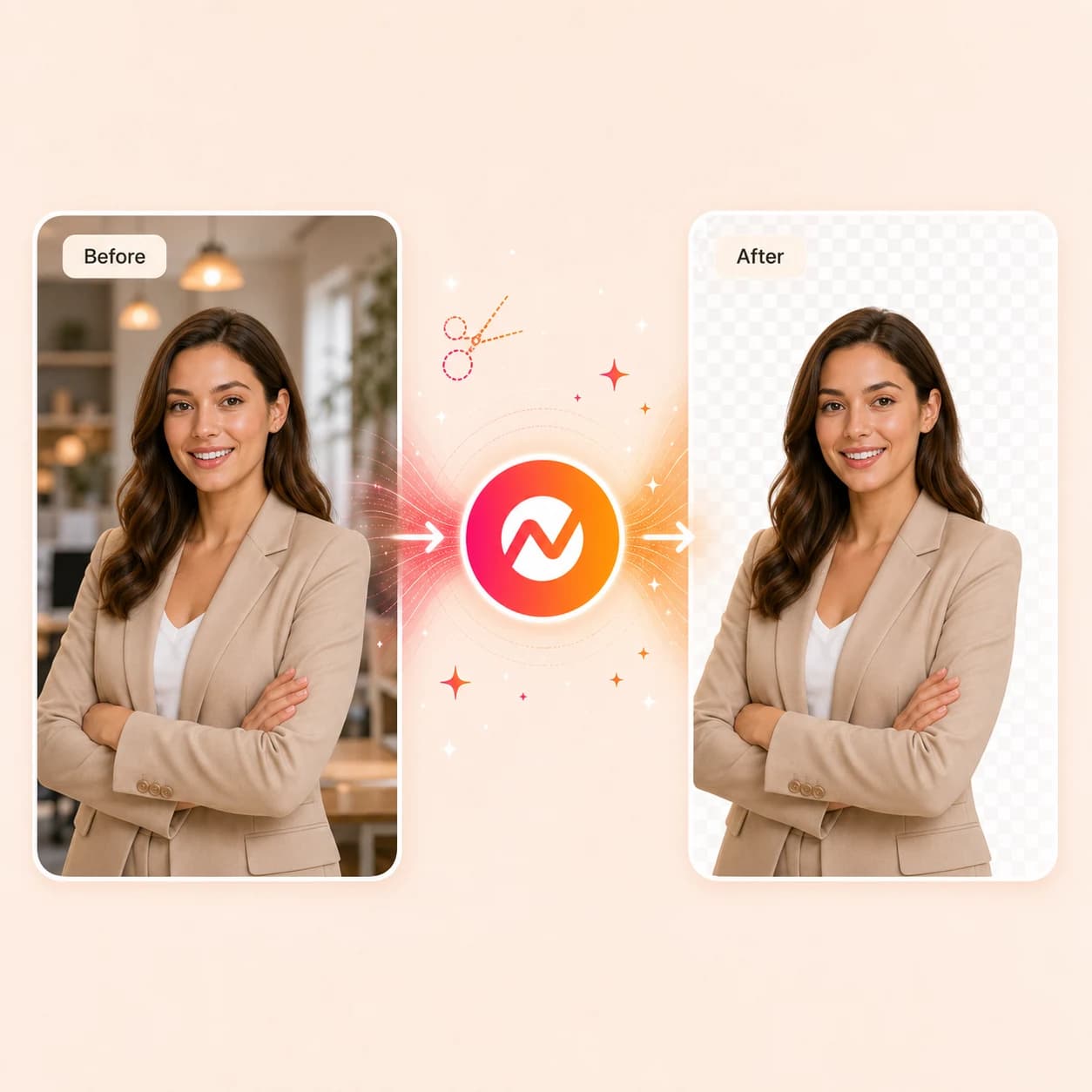
Drop a product photo, portrait, app screenshot, or campaign image. The image background remover isolates the subject, returns a transparent PNG, and keeps the cutout editable inside Image Lab so it can become a thumbnail, scene visual, or branded social graphic.
Trusted by teams at


How it works
From raw image to transparent PNG, ready to reuse.
Upload the image, let ngram isolate the subject, review the cutout, then keep the transparent PNG attached to the next video, thumbnail, or social asset.
Upload the source image
Start with the product photo, portrait, app screenshot, or marketing visual that needs the subject separated from the background. JPG, PNG, and WebP are supported.
Image ready
Remove the background
Image Lab isolates the subject from the surrounding frame, cleans up edges around hair and fine detail, and returns the image as a transparent PNG you can keep editing.
Background removed
Refine the cutout
Check the subject edges, swap the background for a brand color or scene, or stay in Image Lab for inpainting, outpainting, and prompt-based edits on the same asset.
Cutout refined
Use it in the next project
Send the transparent PNG into a video scene, thumbnail, LinkedIn carousel slide, product card, or ad still without re-uploading the file or losing the brand kit context.
Asset ready to ship
What it can do
What the image background remover does inside ngram.
The background removal step lives inside Image Lab, so the cutout stays tied to brand styling, video scenes, and the rest of the launch kit instead of becoming a stranded file.
Remove image backgrounds in one upload
Drop a product photo, portrait, or screenshot and get the subject separated from the original background through ngram's Image Lab background removal step.
Learn more about Image LabExport a transparent PNG
Return a clean cutout on a transparent background so the same image can be reused on white catalog pages, brand backdrops, social cards, and dark video scenes.
Learn more about export formatsPlace the cutout on a branded scene
Apply the brand kit (logos, colors, fonts, image style) and drop the transparent subject onto branded thumbnails, product cards, and campaign visuals without restyling each one.
Learn more about brand kitKeep editing inside Image Lab
Inpaint, outpaint, and rerun prompt-based image edits on the cutout in the same workspace where the background was removed.
Learn more about Image LabDrop the asset into a video scene
Pull the transparent subject into a video scene as a product visual, presenter cutout, or B-roll overlay through the same brand-aware generation pipeline that powers ngram scenes.
Learn more about AI visualsReuse one cutout across the launch kit
Use the same transparent PNG inside the launch video, social posts, LinkedIn carousel slides, sales deck, and email image without re-cutting the subject for each channel.
Learn more about motion graphicsBuilt for reusable transparent PNG assets at /app/image-lab
When it matters
Where the image background remover earns its place.
Nine ngram use-case pages where a transparent PNG of the subject moves the rest of the production forward.
Shopify Product Videos
Cut product shots out of crowded shoot backgrounds first, then turn the clean SKUs into branded Shopify product videos without re-shooting the catalog.
Open AI video use caseAd Creative Video
Generate transparent product PNGs as building blocks for paid ad creative variants where the offer, headline, and background change but the subject stays the hero.
Open AI video use caseMarketing Social Clips
Prepare clean subject cutouts before turning them into looping social clips, thumbnails, and post graphics for the marketing channel calendar.
Open AI video use caseLanding Page Video
Drop a transparent product PNG or presenter cutout into a landing-page video so the subject sits cleanly on top of the page's brand background.
Open AI video use caseProduct Launch Video Maker
Use the background remover on launch screenshots and product shots, then carry the same cutouts through the launch video, social cards, and announcement thumbnails.
Open AI video use caseMarketing Brand Video
Layer transparent product or talent cutouts on top of branded backplates so the same brand video runs on different colors, channels, and seasonal frames.
Open AI video use caseProduct Demo Video
Use this workflow to create product demo video assets from approved business source material.
Open AI video use caseEmail Marketing Video
Create transparent subject images for email video covers and inline graphics so the message reads cleanly across light and dark email clients.
Open AI video use casePMM Social Content
Turn product imagery into transparent cutouts for product marketing social posts, feature announcements, and recap carousels alongside the launch video.
Open AI video use caseProduct stack
The product stack around image background removal.
Background removal sits inside Image Lab; these features connect the transparent PNG to brand work, video scenes, and the formats each channel needs.
Image Lab
The standalone image studio at /app/image-lab where backgrounds get removed, edges get refined, and the cutout stays editable through inpaint, outpaint, and natural-language edits.
Learn more about Image LabAI Visuals
When the cutout becomes a scene, AI Visuals reuses the same brand-aware generation pipeline to drop the transparent subject onto generated backgrounds, B-roll, and scene fills.
Learn more about AI visualsBrand Kit
Apply logos, colors, fonts, image style, screenshot style, motion style, voice, tone, and approved phrases to every backdrop the cutout lands on across the campaign.
Learn more about brand kitMotion Graphics
Layer product callouts, lower thirds, labels, and animated highlights around the transparent subject once it lands inside a video scene.
Learn more about motion graphicsVideo Editing
Place the transparent PNG on the timeline as an overlay, swap a scene's subject, and adjust the surrounding clip with chat, the script editor, and canvas controls.
Learn more about video editingMulti-Format Export
Export the cutout as PNG or JPG and the videos around it as MP4, GIF, WebM, or PPTX so one removed background ships across every channel format.
Learn more about export formatsCollaboration
Share the transparent PNG and the videos built around it inside a workspace gallery so design, marketing, and PMM teammates can reuse the same asset.
Learn more about collaborationEnterprise Integrations
Wire the background removal step into intake automations, MCP agents, browser capture, and publishing surfaces so cutouts route to the right team without manual handoffs.
Learn more about integrationsMore tools
More tools that pair with the image background remover.
Use these when the transparent PNG needs to become motion, gain context, or carry a longer story across video and social.
Generate or animate the visual
Build new imagery or motion around the cutout.
AI Image Generator
Generate matching backdrops, product cards, or scene art for the transparent subject so the layered composite stays on brand.
Open toolImage to Video
Animate the cutout with a push-in, parallax, or pan so the transparent subject becomes a moving scene rather than a still graphic.
Open toolAI Video Generator
Build a multi-scene video around the cutout with script, voiceover, captions, and brand-applied scenes generated for you.
Open toolVideo Background Remover
Use the video-specific background remover when the source is moving footage of a presenter or product instead of a still image.
Open toolLayer context around the cutout
Add the words, sound, and structure that turn a transparent PNG into a finished asset.
Add Text to Video
Place titles, callouts, and product labels next to the transparent subject so the message reads even without sound.
Open toolAdd Music to Video
Bring in background music after the cutout becomes a scene so the audio carries the same pacing as the visual.
Open toolVideo Editor
Drop the cutout onto the timeline, position it inside the frame, and adjust captions, audio, and effects in the same project.
Open toolVideo Caption Generator
Generate styled captions around the subject once the cutout is sitting inside a social or short-form video scene.
Open toolRepackage the finished asset
Move the cutout into more formats and channels.
Video to GIF
Create a short loop of the cutout-led video for product pages, emails, and Slack-friendly previews.
Open toolVideo Converter
Convert the finished video that hosts the cutout into the exact format the channel or partner needs.
Open toolScreen Recorder
Record product context in the browser, then composite the transparent subject on top inside the same ngram project.
Open toolText to Video
Start from a written script and use the transparent subject as the visual that recurs across the new video's scenes.
Open toolConvert
Start from the kind of source the cutout is going to support.
These ngram converters build the projects where a transparent product or subject PNG actually lands as a scene visual, thumbnail, or product card.
Image to Video
Turn the transparent PNG straight into a moving scene with motion, captions, and brand treatment once the background is gone.
Open converterScreenshots to Video
Use clean app images and product screenshots as the base for a visual walkthrough where each subject sits on a branded backplate.
Open converterURL to Video
Pull a hosted product page into ngram, then swap its rough lifestyle images for transparent cutouts on a cleaner brand background.
Open converterWho it is for
Teams that ship one product image across many channels.
Image background removal matters most when one shot has to anchor the video, the social card, the launch email, and the storefront image at the same time.
Ecommerce
Clean product photos for catalog stills, PDP videos, and SKU-level social cuts where the subject has to look the same across the storefront.
See ecommerce workflowsGrowth & Marketing
Build a library of transparent product or hero cutouts so paid campaigns, social variants, and channel videos can swap the background without re-shooting.
See growth workflowsProduct Marketing
Pull transparent screenshots and product images out of launch assets so feature announcements, demos, and explainer videos share the same visual story.
See product marketing workflowsAgencies & Consultants
Deliver client cutouts that work across the brand video, the social calendar, and the campaign deck without restarting the visual prep for each deliverable.
See agency workflowsSupport Teams
Create help, troubleshooting, and support-response videos from the source material your team already maintains.
See support workflowsSales Enablement
Prep transparent product or screenshot cutouts before they ship inside demo follow-ups, proposal videos, and prospecting clips reps record at speed.
See sales workflowsFounders & Solopreneurs
Cut subjects out of the photos already on hand so founder-led launch posts, pitches, and product visuals do not stall waiting on a new shoot.
See founder workflowsSaaS
Lift product UI subjects out of busy screenshots before they appear in feature pages, in-app videos, and partner co-marketing assets.
See SaaS workflowsCustomer Success
Prepare transparent screenshots of features and dashboards for onboarding videos and customer education that work across many accounts.
See customer success workflowsIntegrations
Wire the image background remover into the rest of the stack.
Use live ngram integrations to route source photos into Image Lab, return the cutouts to the team that needs them, and publish the assets that ship around the transparent PNG.
Asset request to cutout set
ZapierWhenA product photo, asset request, or campaign brief lands in your intake tool with images attached.
ThenRun the image background remover on each photo, post the transparent PNGs back to the requester, and tag the originals as processed.
Catalog update to clean cutouts
n8nWhenA new SKU image set or product record is published in your PIM, CMS, or ecommerce backend.
ThenSend each product photo through the image background remover and attach the transparent versions back to the SKU record for storefront and video use.
Campaign step to transparent set
MakeWhenA Make scenario reaches the visual prep stage of a launch or campaign cycle and needs the subjects extracted.
ThenRun the image background remover on the supplied photos and route the transparent assets to the campaign record so the next step can pick them up.
Agentic background removal
MCPWhenAn agent in Claude, ChatGPT, or another MCP client has a product photo or screenshot and needs the subject isolated.
ThenCall ngram through MCP so the image background remover returns a transparent PNG, ready for the agent to drop into a video, deck, or social asset.
Capture a product image, return a cutout
ChromeWhenYou spot a product image, hero shot, or reference visual on a webpage that needs the subject pulled out.
ThenSend the image straight into ngram from the browser so the background remover can return a transparent version without screenshots or downloads.
Cutout-led LinkedIn posts
LinkedInWhenA LinkedIn carousel, launch post, or quote card needs the transparent subject as its hero image.
ThenPublish the post with the cutout placed on the brand backplate and attach the matching copy from the campaign record.
Teaser cutouts on X
X (Twitter)WhenA launch teaser or product reveal on X needs a transparent subject sitting on a clean brand color.
ThenPost the cutout-led image to X with the matching launch copy lined up next to the post.
Cutout thumbnails for YouTube
YouTubeWhenA demo, tutorial, or long-form video on YouTube needs a thumbnail built around the product or presenter cutout.
ThenGenerate the thumbnail in Image Lab using the transparent subject and attach it to the upload with the matching title and description.
Use these surfaces when the image background remover runs inside agents, automations, or browser-based capture flows.
Why ngram
How image background removers compare for branded video work.
Most image background removers stop at the transparent PNG. ngram keeps the cutout connected to brand styling, video scenes, and the launch kit the asset is meant to support.
| Compare | ngram | remove.bg | Adobe Express | Canva |
|---|---|---|---|---|
| Workflow fit | Removes the background and keeps the cutout editable at /app/image-lab through inpaint, outpaint, and prompt-based edits. | Public materials describe remove.bg as a focused background removal service with a web app, browser plugins, and an API for high-volume cutout pipelines. | Public materials describe Adobe Express as a design editor with one-click background removal for JPG, PNG, and WebP, exporting to transparent PNG. | Public materials describe Canva's background remover inside its design editor, with PNG download workflows and integration with templates. |
| How ngram fits | Applies the brand kit to whatever backdrop the transparent subject lands on, so cutouts stay consistent across thumbnails, social cards, and video scenes. | Useful when the main job is producing a transparent PNG quickly and the result will be edited elsewhere afterwards. | Useful when the post-cutout workflow lives inside Adobe Express templates, social posts, or print designs. | Useful when the cutout belongs inside a Canva design, social template, or presentation. |
| Best use | Routes the same transparent PNG into ngram video scenes and launch kits without re-uploading the file or rebuilding brand context. | Compare it when the cutout still has to become a branded video scene, thumbnail, or launch graphic instead of stopping at the PNG. | Compare it when the cutout has to flow into business video creation, scene generation, and multi-format export from the same project. | Compare it when the same transparent image needs to drive a branded ngram video scene and reuse across the wider launch kit. |
FAQ
Common questions about the image background remover
Still curious?
One subject, every backdrop it will ever need
Use the image background remover inside Image Lab to return a transparent PNG, then carry the same cutout through ngram video scenes, thumbnails, social graphics, and the rest of the launch kit.
Open the image background remover now, then keep editing the asset inside ngram.
Transparent PNG, Image Lab, video scenes