Eye Contact AI by ngram
Read the script, still face the lens

Drop a talking-head clip
MP4, MOV, WebM, MKV - presenter clips with a centered face work best
What it does
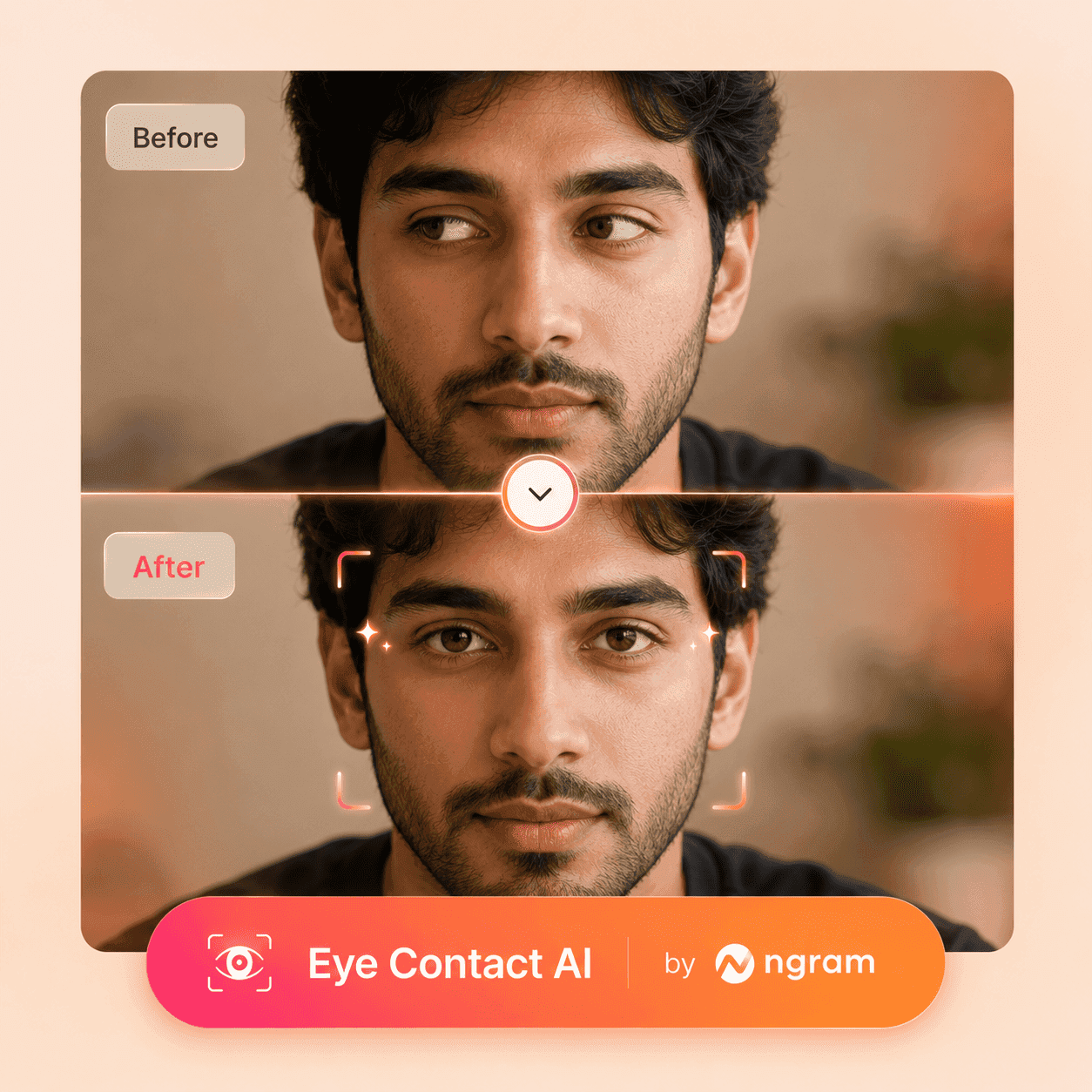
Upload a talking-head clip where the speaker glanced at notes, a teleprompter, or a second monitor. Eye Contact AI redirects the gaze toward the camera frame-by-frame, then the project stays open for captions, brand kit, translation, and multi-format export.
Trusted by teams at


How it works
From off-camera glances to a clip that holds eye contact.
Run the gaze correction inside the same project that owns the rest of the video, then keep editing without a second tool.
Upload the talking-head clip
Drop a webcam take, a phone clip, a Loom-style recording, or a hosted presenter file. Keep the face roughly centered and front-facing for the cleanest correction.
Speaker clip uploaded
Redirect the gaze frame-by-frame
Eye Contact AI replaces the eye region on each frame so the speaker appears to address the lens, even on lines where they were reading from notes or a teleprompter.
Gaze redirected to camera
Preview before committing
Scrub the corrected clip and compare against the original on the same timeline. Keep the take when the eyes still feel natural; rerun if a beat looks too locked-in.
Preview locked
Finish the video in one project
Add captions, apply the brand kit, translate the voiceover, resize for vertical or square, and export. The corrected presenter clip stays the source of truth across every variant.
Ready to publish
What it can do
What Eye Contact AI does inside ngram.
Fix the presenter take first, then carry the same project into the rest of the business video workflow without rebuilding scenes.
Redirect off-camera gaze on talking-head footage
Replace the eye region frame-by-frame on clips where the speaker glanced at notes, a teleprompter, a second monitor, or a phone propped beside the camera.
Save the best vocal take instead of re-recording
Keep the take where the script landed, even if the eyes drifted on the key lines. The correction operates on the visual eye region; the audio performance stays intact.
Pair with talking-head and avatar workflows
Use Eye Contact AI on live presenter clips and pair it with lip-synced avatars or the custom faces library when a scene needs a fully generated speaker.
Learn more about avatarsBurn captions after the gaze is corrected
Run the subtitle pass on the corrected clip so a presenter-led LinkedIn post, demo recap, or training video plays cleanly with sound off.
Learn more about captionsFinish with brand kit on top
Apply the team's logo, colors, fonts, intro and outro cards, and lower-thirds after the correction so every shipped presenter clip looks like the same brand.
Learn more about brand kitTranslate the corrected take for global audiences
Reuse the corrected presenter clip across translated voiceover, captions, and on-screen text without recording new footage for each language.
Learn more about translationBuilt for presenter-led business video
When it matters
Where eye contact correction earns its place.
Nine ngram use-case pages where presenter footage needs to feel direct, prepared, and ready for the channel.
Sales Prospecting Video
Outreach clips fired off between meetings rarely allow a clean second take. Correct the gaze on the first read so the prospect sees a focused face, not a teleprompter glance.
Open AI video use caseSales Demo Video
Reps build demos where the camera intro is recorded from notes. Eye Contact AI keeps the opener pointed at the buyer while the rest of the screen-plus-speaker layout stays intact.
Open AI video use caseCustomer Onboarding Video
First-week explainers are read carefully because the steps matter. Run the correction so new customers feel addressed instead of watching a script glance.
Open AI video use caseTraining Video
Instructors often read steps from a runbook just out of frame. The gaze correction keeps the lesson feeling delivered to the trainee, not to the cheat sheet.
Open AI video use caseInvestor Pitch Video
Founder pitch clips are usually recorded once before a deadline. Correct the gaze so the investor sees the founder, not the notes beside the camera.
Open AI video use caseFounder Investor Update
Monthly investor updates get recorded between board prep and product reviews. Run the correction so the LP video reads as composed even when the script was read live.
Open AI video use casePMM Product Launch
Launch hero clips often pair a presenter with screen captures. The corrected gaze keeps the spokesperson section pointed at the viewer for every cut of the launch campaign.
Open AI video use caseInternal Communication Video
All-hands recaps and exec updates are read because the wording matters. The correction makes the message feel addressed to the team instead of read from a card.
Open AI video use caseCS QBR Video
QBR recaps replace the live meeting for the second half of the room. Correct the CSM intro so the customer sees a focused account owner, not a glance at the numbers.
Open AI video use caseProduct stack
The product stack around a corrected presenter take.
Eye Contact AI fixes the eyes; these features handle script, captions, brand, audio, translation, and channel-ready export.
Video Editing
After the eye region is corrected, trim filler, reorder takes, layer B-roll, and tighten the cut without leaving the project.
Learn more about video editingCaptions & Subtitles
Burn timed subtitles onto the corrected take so the same presenter clip plays cleanly with sound off on LinkedIn, Reels, and email.
Learn more about captionsBrand Kit
Wrap the corrected presenter clip in the team's logo, colors, intro card, lower-thirds, and outro CTA so every speaker variant feels on-brand.
Learn more about brand kitAI Voiceover
Replace a rough live take with cloned or stock TTS voiceover when the audio needs a cleaner pass and the corrected face stays on screen.
Learn more about AI voiceoverDynamic AI Avatar Talking Head
Use a generated avatar, an approved team face, or the live corrected clip for the presenter role - sometimes the right scene is half live, half generated.
Learn more about avatarsScreencast Understanding
Stack the corrected presenter inset over screen-recorded demos with smart zooms, click emphasis, and product callouts on the underlying capture.
Learn more about screen recording polishTranslation & Localization
Carry the corrected presenter take into translated voiceover, captions, and on-screen text so the same speaker reaches every market.
Learn more about translationMulti-Format Export
Render the corrected video as widescreen, square, and vertical exports without losing eye-line alignment on the reframed presenter.
Learn more about export formatsMore tools
Tools that pair with the gaze correction.
Use these alongside Eye Contact AI when the presenter take is part of a bigger sales, training, launch, or education video.
Record and clean the presenter take
Prepare the source clip before the eye correction runs.
Screen Recorder
Capture a webcam-plus-screen take in-browser when the demo and the speaker are recorded together.
Open toolRemove Background Noise from Video
Strip room hum, AC noise, or hallway chatter from the take before the corrected clip ships.
Open toolRemove Background Noise from Audio
Clean a separate mic recording before reattaching it to the corrected video.
Open toolVideo Cutter
Trim the take down to the usable section before the gaze correction is applied.
Open toolCaption and polish the corrected clip
Finish the video around the corrected presenter take.
Add Subtitles to Video
Burn brand-styled subtitles onto the corrected presenter clip so it plays silently across the feed.
Open toolAuto Subtitle Generator
Generate timed subtitle lines for the corrected take when only the caption file is needed.
Open toolVideo Caption Generator
Add animated, word-by-word captions for short social cuts of the corrected presenter take.
Open toolAdd Music to Video
Sit a background music bed under the corrected take once the voice and captions are locked.
Open toolVideo Editor
Open the full editor to layer the corrected clip with B-roll, callouts, music, and brand pieces.
Open toolGenerate the presenter when no take exists
Skip the live recording when the source has to be created from scratch.
AI Avatar Video Generator
Build a presenter-led scene from a script when no live take exists and live correction does not apply.
Open toolText to Speech Video
Turn a written script into a narrated video; pair it with a corrected live face for the talking-head intro.
Open toolVideo Script Generator
Draft the speaker script first so the live take stays short and the correction has less room to drift.
Open toolText to Video
Generate a draft video from written source material when the corrected presenter take is one scene of many.
Open toolLocalize and distribute
Carry the corrected presenter clip into other languages and channels.
Video Translator
Translate the corrected take with localized voiceover, captions, and on-screen text from one source clip.
Open toolVoice Dubber
Dub the corrected presenter clip into another language while the eye-line stays pointed at the lens.
Open toolVideo Converter
Convert the finished corrected video into the codec or container the destination platform expects.
Open toolVideo to GIF
Loop a short corrected moment into a GIF for email, docs, or chat without needing a full clip to play.
Open toolConvert
Where presenter footage that needs gaze correction usually starts.
Three source-to-video converters that produce the kinds of clips most likely to pair with Eye Contact AI as the next step.
Screen Recording to Video
Turn a raw screen recording with a webcam inset into a polished walkthrough where the corrected presenter window stays on camera.
Open converterWebinar to Clips
Cut a webinar into shorter presenter-led clips, then correct the gaze on the host takes where the moderator was reading from notes.
Open converterText to Video
Draft a scripted video first so the live presenter clip is short, on-topic, and easier to keep on the lens during correction.
Open converterWho it is for
Teams that show up on camera for a living.
Eye contact correction matters most for roles where the speaker reads from a script, a screen, or notes - and still needs the viewer to feel addressed.
Sales Enablement
Prospecting, demo intro, and follow-up clips where reps read from talk tracks but need the prospect to feel addressed directly.
See sales workflowsFounders
Investor updates, product explainers, and company-wide messages recorded between meetings, usually from notes.
See founder workflowsProduct Marketing Managers
Launch, demo, and explainer videos where the spokesperson intro carries the campaign and the script is read live.
See product marketing workflowsCustomer Success
Onboarding clips, QBR recaps, and education videos that need the CSM to feel present without a live call.
See CS workflowsEducators & Trainers
Course modules and recap videos where instructors read step lists and definitions just out of frame.
See educator workflowsDeveloper Relations
API walkthroughs and conference recaps that pair a presenter intro with a screen demo on the second monitor.
See DevRel workflowsHR & Internal Comms
Company announcements and policy updates that leaders record once, then share to the whole org.
See internal comms workflowsProduct Managers
Roadmap, changelog, and stakeholder updates recorded fast so a meeting becomes a watchable clip.
See product workflowsContent Creators
Long-form and short-form creators who read from a teleprompter and still need camera presence on every cut.
See creator workflowsIntegrations
Triggers that move the corrected take to the next owner.
Live ngram integrations that fit a presenter-video workflow where the gaze correction is one step before captions, review, or publishing.
Zapier
No-codeWhenA new presenter clip lands in Drive, Dropbox, or a form intake from a rep, founder, or instructor
ThenSend the clip into ngram for the gaze correction and route the finished file back to the owner
MCP Server
AgenticWhenClaude or ChatGPT is asked to fix eye contact on a clip referenced in the conversation
ThenCall ngram, run Eye Contact AI on the source clip, and return the corrected MP4 inside the agent thread
n8n
WorkflowWhenA CRM stage flips to demo-recap or a training record marks a recording as ready
ThenSend the source clip into Eye Contact AI and post the corrected file back to the record
Make.com
ScenarioWhenA launch presenter clip is approved for the campaign workspace
ThenRun the gaze correction in ngram and notify the campaign owner with the corrected version
Chrome Extension
CaptureWhenYou spot a hosted presenter clip on the web that needs a gaze fix before sharing
ThenSend the source URL straight into ngram and start Eye Contact AI without downloading by hand
WhenA corrected founder, exec, or sales clip is approved for the feed
ThenPublish the corrected video to LinkedIn with the post copy attached
X (Twitter)
PublishWhenA short presenter teaser is ready after the eye contact correction lands
ThenPost the corrected clip to X with the launch copy alongside
YouTube
PublishWhenA long-form demo, training module, or webinar recap finishes the gaze correction
ThenUpload the corrected MP4 to YouTube with title, description, and chapter markers
Why ngram
How ngram compares for eye contact AI.
A fair view of dedicated gaze-correction tools versus a connected presenter-video workflow that owns captions, brand, translation, and export in the same project.
| Compare | ngram | Descript | VEED | Captions |
|---|---|---|---|---|
| Workflow fit | Eye Contact AI runs through a dedicated start route, then the same project handles captions, brand kit, translation, and multi-format export without re-importing. | Descript ships an AI Eye Contact effect at the clip layer inside its scene and timeline editor, with a non-destructive toggle. | VEED offers an Eye Contact AI tool inside its browser editor that subtly redirects the speaker's gaze toward the camera. | Captions bundles an AI eye contact effect with caption generation in a creator-first mobile and web flow. |
| How ngram fits | Best for presenter-led business video where the corrected clip needs to roll straight into sales recaps, training, launch, or onboarding variants. | Strongest fit for podcasters and transcript-led editors who already edit by clicking words on the script. | Works well for one-off creator edits where the goal is to polish a single uploaded talking-head clip. | Best for social-first creators who record short selfie-style clips and want a single app for caption and eye polish. |
| Best use | Targets teams that want the gaze correction to live alongside script, storyboard, and channel workflows rather than as a one-off effect. | ngram is the better fit when the corrected take needs to continue into branded launch, demo, training, or localized variants. | ngram pairs the gaze correction with the script, brand, integrations, and publishing layer for teams that ship presenter video repeatedly. | ngram is built around B2B presenter video where the same project owns script, scenes, brand kit, translation, and channel variants. |
FAQ
Common questions about Eye Contact AI
Still curious?
Keep the take, fix the gaze
Run Eye Contact AI on the presenter clip first, then keep the project open for captions, brand, translation, and multi-format export. One source clip, one project, one corrected take across every channel.
Open Eye Contact AI through the dedicated route, then finish the full video in ngram.
Gaze correction, captions, brand, export