Video Background Remover by ngram
Video Background Remover Branded Backdrops

Drop a video to remove the background
Talking-head clips, product demos, testimonials, lessons, and social cuts work best when the subject is clear and the original room is distracting
What it does
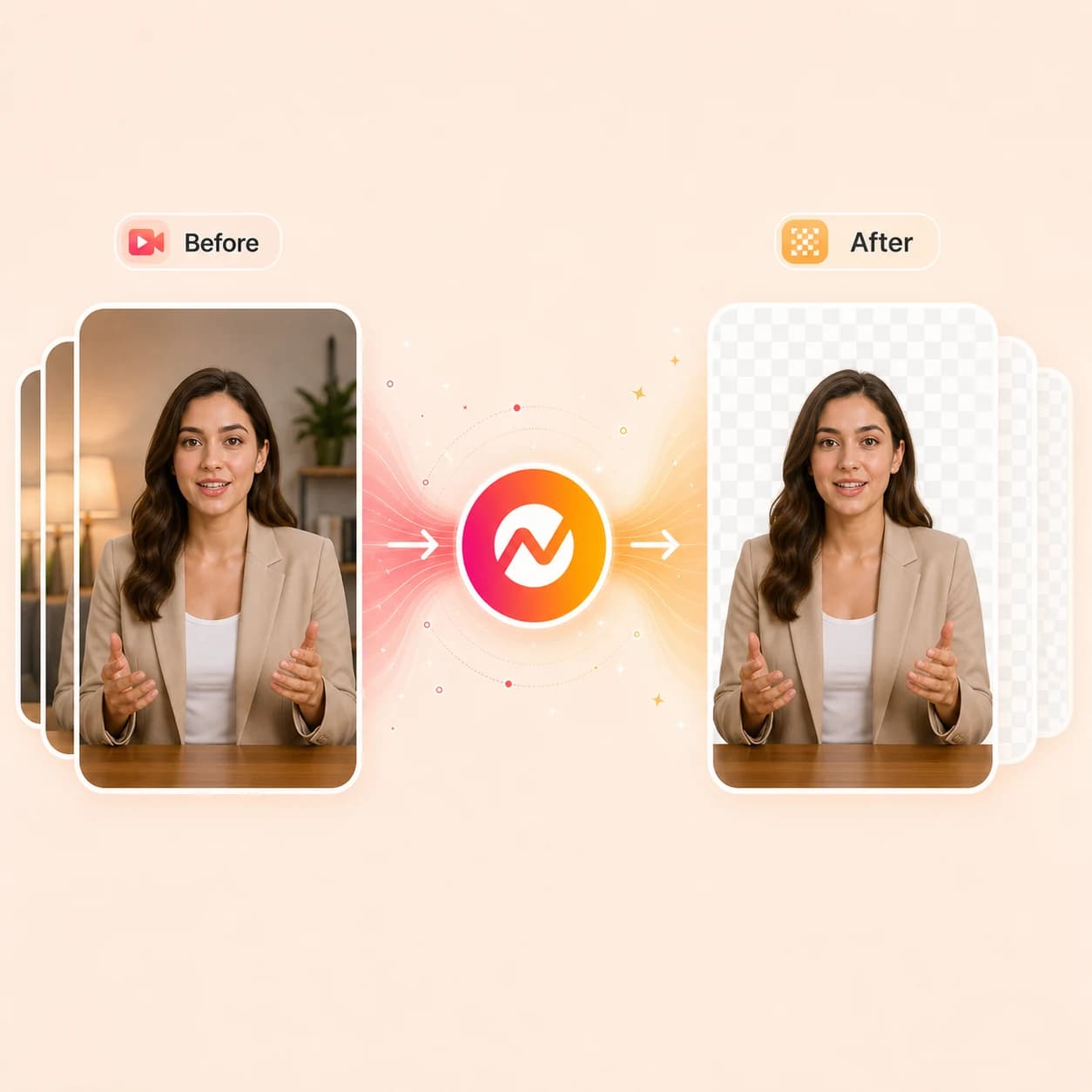
Drop a presenter clip, product demo, lesson recording, or social cut. The video background remover separates the subject from the room, swaps the scene for a brand backdrop or generated plate, and keeps the cleaned clip editable for captions, layout, and channel export inside ngram.
Trusted by teams at


How it works
From a distracting room to a branded backdrop in four steps.
Upload the clip, isolate the subject, choose the new scene, then keep the cleaned video inside the same ngram editing project.
Upload the clip
Start with a presenter recording, customer testimonial, product demo, lesson, or social cut where the room behind the speaker is pulling attention away from the message.
Clip ready
Separate subject from background
ngram isolates the presenter or foreground subject frame by frame so the original room can be removed, blurred, or replaced without a green-screen reshoot.
Subject isolated
Drop in the new scene
Swap the room for a brand color, screenshot, generated backdrop, or product visual so the subject sits on a backdrop that matches the channel and campaign.
Backdrop in place
Finish the cut
Add captions, text overlays, music, brand intros, resizing, and channel-specific export inside the same project so the cleaned clip ships ready for LinkedIn, YouTube, or vertical.
Ready for channels
What it can do
What the video background remover does inside ngram.
The background step lives inside the wider video edit, so the cleaned clip stays connected to captions, brand, scenes, and channel-ready export instead of becoming a stranded render.
Remove a video background without a green screen
Separate the presenter or product foreground from the room behind it on footage that was recorded with a webcam, phone, or office camera, with no chroma key required.
Replace the scene with a branded backdrop
Drop the cleaned subject onto a brand color, product screenshot, generated plate, or scene visual so the clip feels like a campaign asset instead of a quick recording.
Learn more about AI visualsKeep the brand kit consistent across cuts
Apply the brand kit (logo, colors, fonts, motion style, intros, and outros) around the cleaned subject so every video uses the same backdrop language.
Learn more about brand kitAdd captions after the scene is clean
Generate captions, lower thirds, and titles on top of the new backdrop so the subject, words, and layout work together when the video plays without sound.
Learn more about captionsReframe the cleaned clip for each channel
Turn the same background-cleaned cut into widescreen, vertical, and square exports with the subject framed correctly for LinkedIn, YouTube, Reels, and Shorts.
Learn more about export formatsKeep editing the clip after cleanup
Adjust timeline, captions, scenes, audio, and script through chat, the script editor, and the visual canvas without leaving the project where the background was removed.
Learn more about video editingBuilt for presenter-led, demo, and social video polish
When it matters
Where a cleaner video background changes the result.
Nine ngram use-case pages where the presenter, demo, or social clip earns more attention once the original room is gone.
Feature Announcement Video
Use this workflow to create feature announcement video assets from approved business source material.
Open AI video use caseLinkedIn Video
Replace the room behind a LinkedIn talking-head with a branded backdrop so the speaker, captions, and frame feel prepared for a work audience.
Open AI video use caseProduct Demo Video
Clean up the background behind the presenter in a product demo, then keep callouts, zooms, and product context layered over the new scene.
Open AI video use caseSales Demo Video
Strip the home office or open-plan room out of a rep's demo recording and drop in a buyer-ready backdrop before sending the follow-up clip.
Open AI video use caseCustomer Testimonial Video
Remove the customer's background so their proof story sits on a branded scene with captions, lower thirds, and a consistent visual frame.
Open AI video use caseFounder Social Content
Turn quick founder-recorded clips into branded social cuts by replacing whatever room the recording happened in with a clean backdrop the channel expects.
Open AI video use caseMarketing Social Clips
Run presenter-led marketing clips through the video background remover before adding captions, brand styling, and per-channel exports for the calendar.
Open AI video use caseEvent Recap Video
Pull speakers and panelists out of a noisy event backdrop so the recap clip can drop them onto a branded plate alongside titles, lower thirds, and highlight moments.
Open AI video use caseTraining Video
Clean the room behind an instructor recording so training clips look consistent across modules, even when the source footage was filmed in different offices.
Open AI video use caseProduct stack
The product stack around the video background remover.
These ngram features turn a background-cleaned clip into a finished, branded, channel-ready video instead of a raw cutout.
Video Editing
Continue editing the cleaned clip on the timeline: adjust subject placement on the new backdrop, refine captions and audio, and trim scenes inside the same project.
Learn more about video editingMotion Graphics
Layer lower thirds, product callouts, scene transitions, and branded overlays around the subject once the original room is no longer competing with the message.
Learn more about motion graphicsBrand Kit
Apply logos, colors, fonts, motion style, and approved visuals to whatever backdrop the cleaned subject lands on so every video keeps the same brand frame.
Learn more about brand kitAI Visuals
Generate the replacement backdrop (scene plates, product environments, or campaign backgrounds) through the same brand-aware pipeline that powers ngram scenes.
Learn more about AI visualsImage Lab
Use Image Lab to prepare the replacement backdrop image, crop a product screenshot, or clean up the brand plate before dropping it behind the cleaned subject.
Learn more about Image LabCaptions & Subtitles
Generate styled captions on top of the new scene so the cleaned clip still reads on muted feeds across LinkedIn, approved social channels, Reels, and Shorts.
Learn more about captionsMusic
Layer background music that supports the cleaned clip's pacing without burying the speaker who now sits on the new backdrop.
Learn more about musicMulti-Format Export
Export the cleaned cut as widescreen, vertical, or square video with the subject reframed correctly for each channel instead of a single locked output.
Learn more about export formatsMore tools
Tools that pair with the video background remover.
Clean the source clip, build the new scene, and finish for channels without leaving ngram.
Clean the source clip
Fix the recording before the background swap.
Remove Background Noise from Video
Strip room hum, fan noise, and chatter from the audio while you replace the room in the picture.
Open toolVideo Cutter
Trim openings, endings, and dead air out of the clip before sending it into the background remover.
Open toolEye Contact AI
Correct the speaker's gaze when they were reading from a script or screen so the cleaned clip looks recorded for camera.
Open toolVideo Editor
Open the full editor to adjust the cleaned clip, captions, audio, and effects inside one project.
Open toolBuild the new scene
Create the backdrop and visuals the subject sits on.
AI Image Generator
Generate the replacement backdrop image: scene plates, product environments, or brand backgrounds for the cleaned subject.
Open toolImage to Video
Animate a still backdrop or product image into a moving plate so the cleaned subject sits on motion instead of a static fill.
Open toolAI Video Generator
Generate short B-roll clips that can sit behind the cleaned subject as a scene fill or standalone visual moment.
Open toolBackground Remover
Use the image background remover when the source is a still photo or screenshot rather than a moving clip.
Open toolFinish for channels
Layer the words, sound, and formats the channel expects.
Add Subtitles to Video
Generate and style subtitles on the cleaned clip so the new scene still reads on muted social feeds.
Open toolAdd Text to Video
Layer titles, callouts, and lower thirds on top of the new backdrop after the background swap.
Open toolAdd Music to Video
Drop background music under the cleaned clip and balance it against the speaker who now sits on the new scene.
Open toolVideo Converter
Convert the finished, background-cleaned cut into the exact file format each channel or partner accepts.
Open toolConvert
Converters that feed the video background remover.
Start from the source material the cleaned clip needs and let the background swap happen as part of the same project.
Screen Recording to Video
Turn a rough screen recording with a webcam overlay into a polished video where the presenter sits on a clean backdrop instead of a busy home office.
Open converterWebinar to Clips
Lift speakers and panelists out of webinar footage and place them onto a branded backdrop before slicing the recording into short clips.
Open converterVideo Converter
Bring existing video files into ngram in a clean format so the background remover and the rest of the edit can run on a single source.
Open converterWho it is for
Teams that need a cleaner backdrop behind their presenters.
These teams record quickly in whatever room they have and still need the frame, captions, and brand to look ready before publishing.
Support Teams
Create help, troubleshooting, and support-response videos from the source material your team already maintains.
See support workflowsGrowth & Marketing
Run presenter-led ad creative and social clips through the video background remover so every campaign cut sits on the same brand scene.
See growth workflowsAgencies & Consultants
Turn rough client-recorded talking heads into branded deliverables without restarting the edit in another tool or asking for a green-screen reshoot.
See agency workflowsSales Enablement
Clean up the room behind reps in demo follow-ups, proposal walkthroughs, and prospecting clips so the video feels prepared instead of impromptu.
See sales workflowsCustomer Success
Use the video background remover on onboarding clips, QBR recordings, and customer education videos so the same instructor reads the same across accounts.
See customer success workflowsFounders & Solopreneurs
Strip the kitchen, hotel room, or co-working space out of a quick founder clip and drop the speaker onto a clean brand backdrop before posting.
See founder workflowsProduct Marketing
Run launch presenters, demo hosts, and explainer talent through the background remover so launch videos share a consistent visual frame.
See product marketing workflowsEducators & Trainers
Replace the classroom or office behind an instructor so training videos look consistent across modules even when filmed in different rooms.
See educator workflowsHR & Internal Comms
Clean up executive updates, training messages, and culture clips with a backdrop that matches the company's visual identity across every recording.
See internal comms workflowsIntegrations
Wire the video background remover into team workflows.
Live ngram integrations route presenter clips into the background remover, send the cleaned versions for review, and publish the final cut once the new scene is approved.
Zapier
No-codeWhenA presenter clip lands in a shared intake folder, form, or content request ticket with the original room visible.
ThenCreate an ngram project, queue the video background remover, and notify the editor that the clip is ready for the new backdrop.
n8n
WorkflowWhenA talking-head or demo recording moves into the post-production stage of an n8n content pipeline.
ThenSend the clip into ngram for background removal, brand-backdrop replacement, and captions before the next workflow step picks it up.
Make.com
ScenarioWhenA Make scenario reaches the visual polish step for a campaign clip recorded in a non-branded room.
ThenStart the ngram cleanup, replace the backdrop with the approved scene, and route the result back into the campaign record for sign-off.
MCP Server
AgenticWhenAn AI agent has a presenter clip and brand-backdrop instructions and needs the room behind the speaker swapped.
ThenCall ngram through MCP so the video background remover returns an editable project with the new scene already applied.
Chrome Extension
CaptureWhenA hosted presenter clip or demo recording in a browser tab needs to become a background-cleaned video.
ThenSend the source clip and its context straight into ngram from the browser so the cleanup project opens with the scene swap queued.
WhenA presenter-led LinkedIn post is ready after the background swap and final review.
ThenPublish the cleaned clip with the brand backdrop directly to LinkedIn without re-exporting through another tool.
X (Twitter)
PublishWhenA short presenter clip with the new backdrop is approved for a launch or update thread on X.
ThenPost the background-cleaned version to X alongside the matching thread copy from the campaign record.
YouTube
PublishWhenA tutorial, lesson, or demo is finished after the room behind the presenter has been replaced.
ThenUpload the final render to YouTube with the new backdrop, captions, and title baked into the published video.
Why ngram
How video background removers compare for branded video work.
Most video background removers stop at the cleaned clip. ngram positions the background step inside a wider branded video workflow so the cleanup, captions, brand kit, and channel exports stay in one project.
| Compare | ngram | Runway | VEED | Kapwing |
|---|---|---|---|---|
| Workflow fit | Removes the background from a video and keeps the cleaned clip editable for captions, brand kit, motion graphics, music, resizing, and channel-ready export in the same project. | Public materials describe Runway's Green Screen tool for removing video backgrounds with brush refinement, color or transparent output, and HD or 4K exports on paid plans. | Public materials describe VEED's one-click video background remover with chroma key, branded backdrop replacement, and webcam recording inside the same editor. | Public materials describe Kapwing's video background remover with automatic subject detection, chroma key, and a stock image and video library for replacement backdrops. |
| How ngram fits | Applies the brand kit to the replacement backdrop so every cleaned clip uses the same colors, logos, and motion style instead of a one-off scene swap. | Useful when the job is a focused background removal inside a creative AI video studio and the result will be finished elsewhere. | Useful when background removal happens alongside general online video editing for social and team clips. | Useful for quick social-video background swaps inside a general online editor. |
| Best use | Routes the cleaned video into ngram launch kits, persona variants, and channel formats without restarting the edit in another tool. | Compare fit when the cleaned clip still needs script-led editing, brand kit treatment, captions, and multi-channel export from the same project. | Compare fit when the same project also needs script generation, brand-kit governance, persona variants, and source-to-video converters. | Compare fit when the cleaned clip needs to flow into branded scenes, captions, channel exports, and team review without restarting the edit. |
FAQ
Common questions about the video background remover
Still have questions?
Put the subject on a backdrop that fits the brand
Use the video background remover to strip the original room out of presenter clips, demos, and social cuts, drop the subject onto a branded scene, and keep editing captions, layout, music, resizing, and channel-ready export inside ngram.
Open the focused video background remover now, then finish the full video in the editor.
Backdrop, captions, brand, channel export